We Finally Got the Zotero 8 Upgrade#
On January 22, 2026, Zotero 8 was officially released. The official description says this release “continues to refine” the new design and capabilities introduced in Zotero 71. That sounds modest, but once you use it, you will notice several pleasant improvements in citation writing, PDF reading, and note management, the features many of us touch every day. Let’s look at what is different in Zotero 8.
How to Upgrade? One Minute Is Enough#
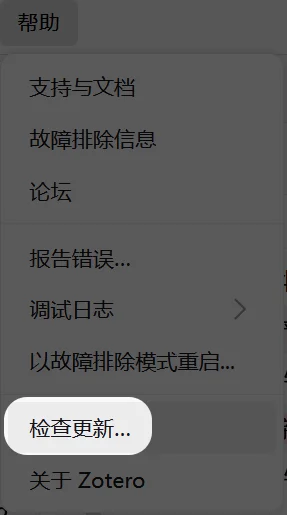
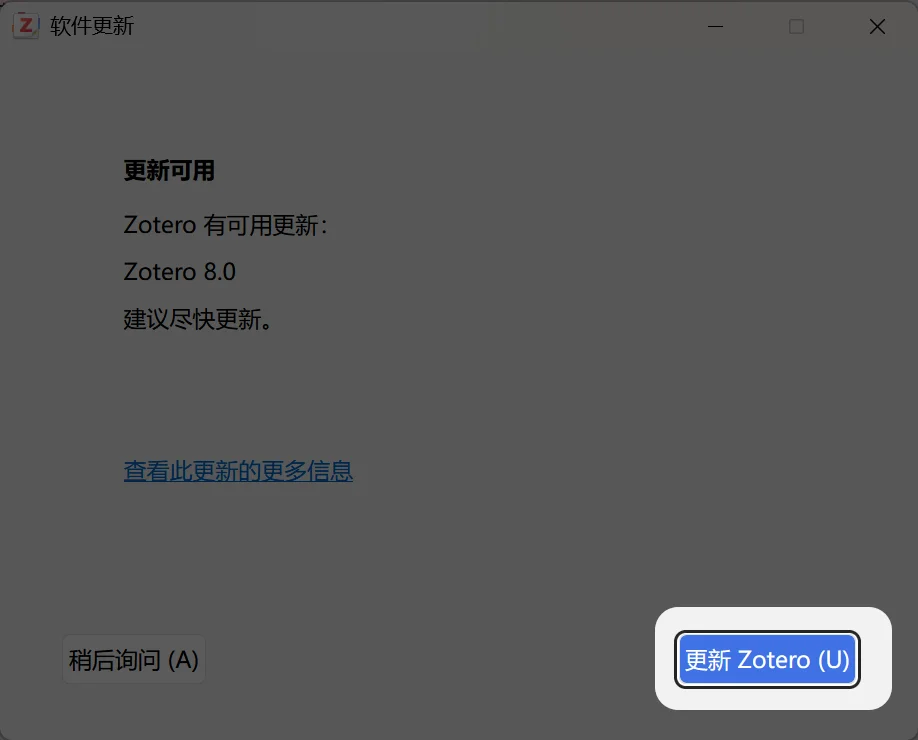
Click Help in the upper-left corner, choose Check for Updates, and then click Update Zotero. It is almost too simple.
The two images below show the update entry and the update process. Follow them and you should not go wrong:
The Citation Dialog Is Finally Unified#
In the Zotero 7 era, the citation experience had two main styles: the classic dialog window, and the red/yellow bar interaction used by Quick Format and Add Note. Both worked, but the experience did not feel unified.
Zotero 8 merges these three paths into one unified citation dialog and provides two switchable modes: Item List and Library.
Here are the two older styles familiar from Zotero 7:
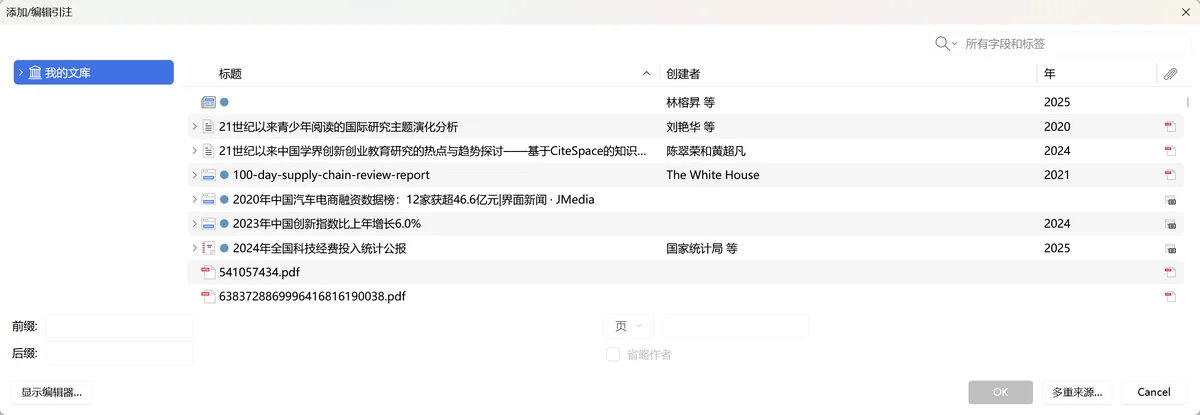

Now look at Zotero 8’s unified citation dialog. It feels more like a switchable workspace: one side is the Item List mode for whole-library search, the other is the Library mode for browsing by library or collection. It also shows currently selected items and open documents:

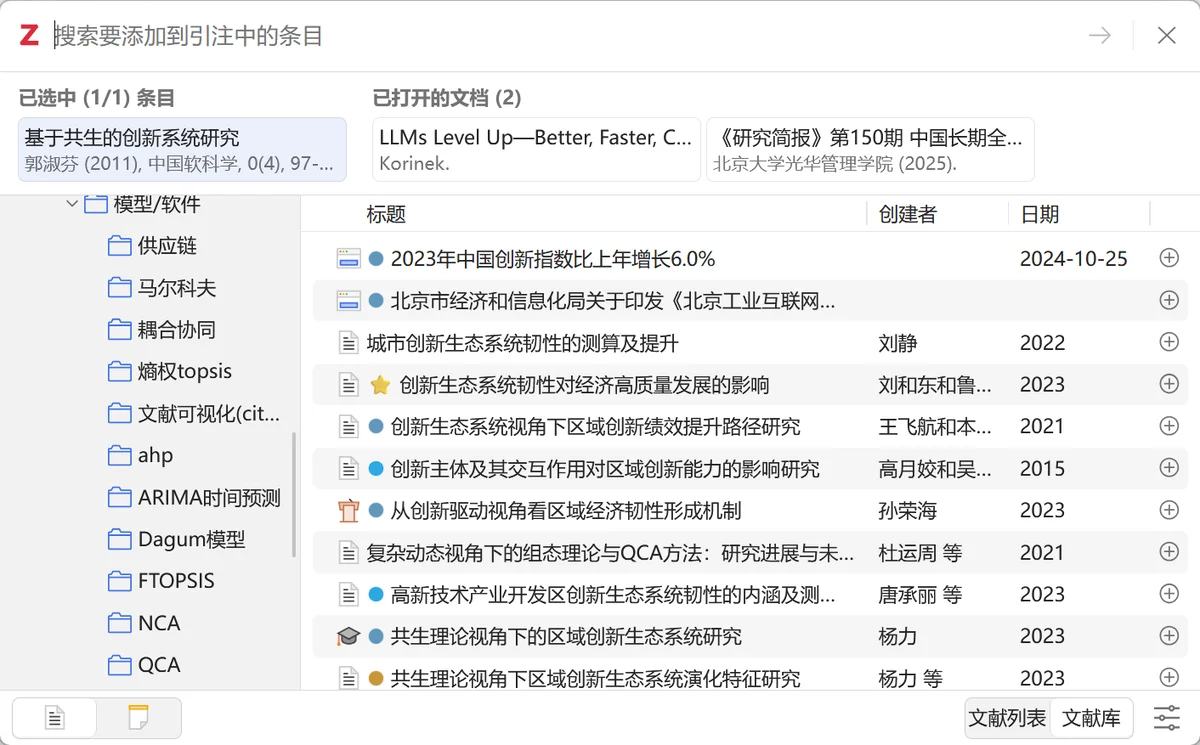
Annotations Are Shown Directly in the Item List#
Previously, to view annotations for a paper, you either opened the PDF or searched through the right information pane. Now all annotations under the PDF can appear directly in the item list, making them much easier to find.
This is how Zotero 7 displayed annotations, requiring the PDF or side panel:
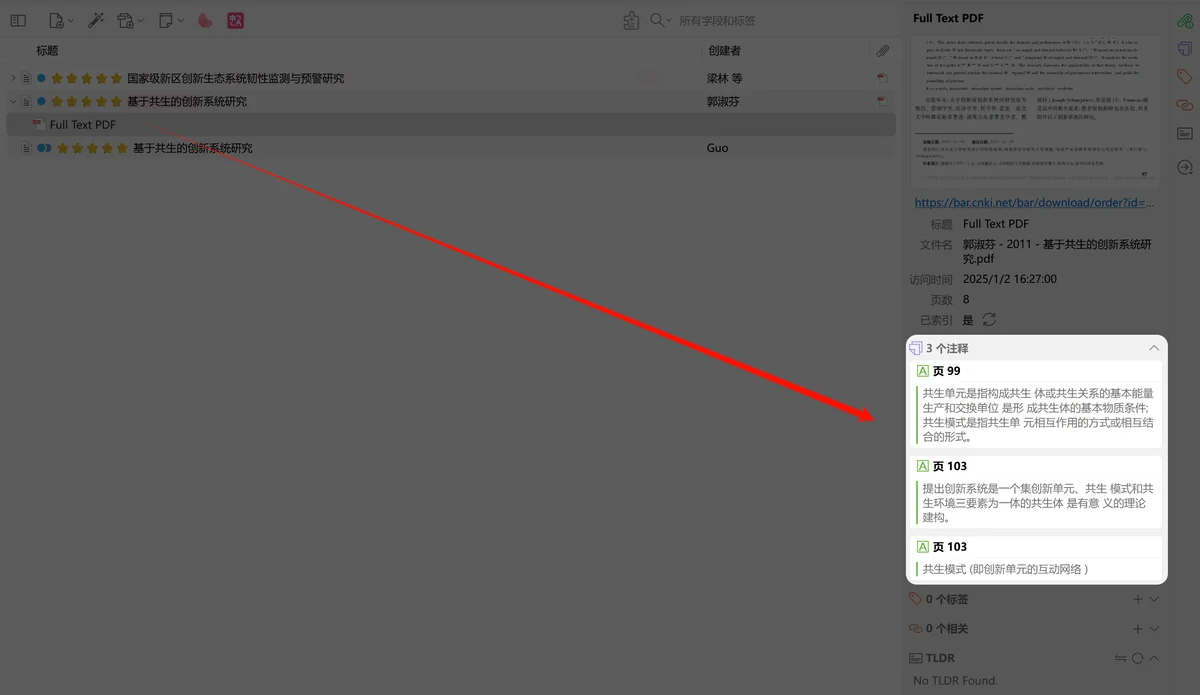
This is Zotero 8: annotations appear directly in the item tree under the parent attachment:

Notes No Longer Open as Pop-Up Windows#
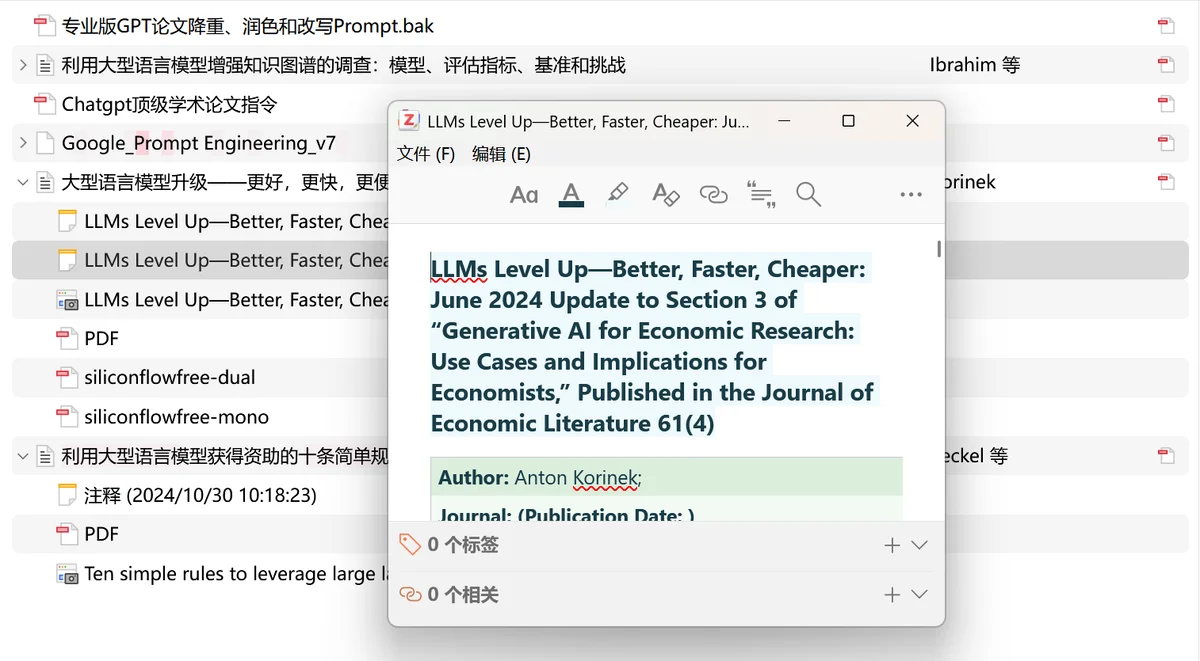
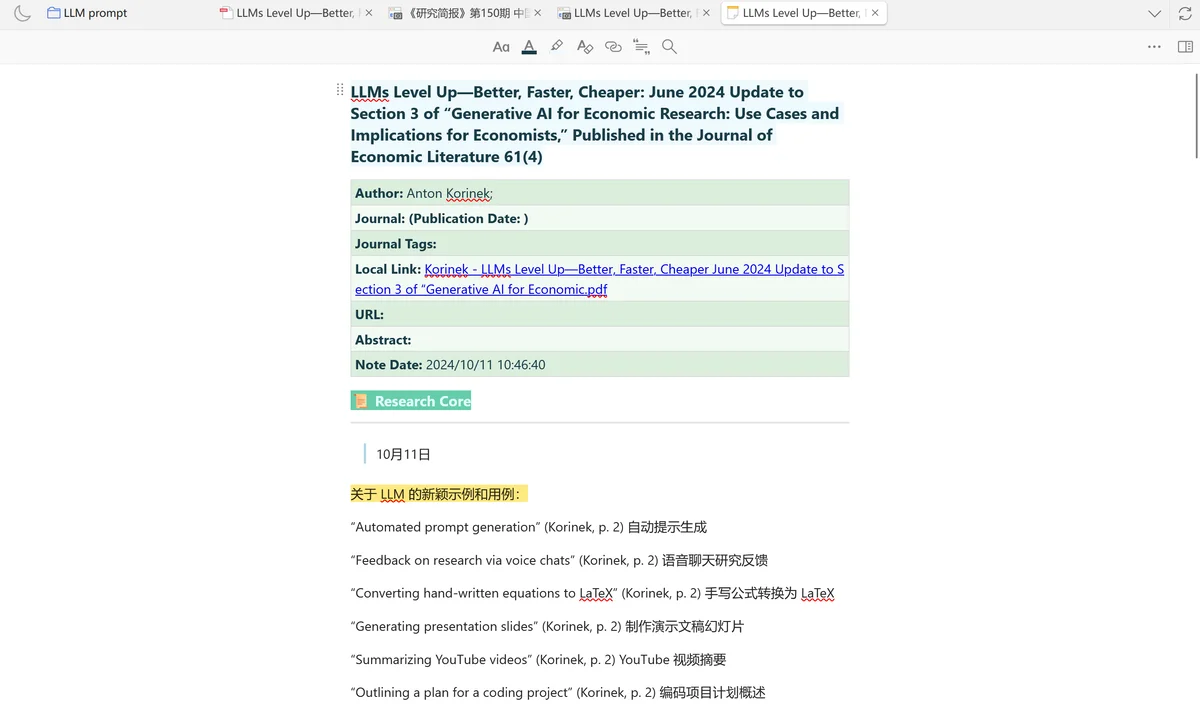
Double-clicking a note used to open a new window. Now it opens in a new tab inside Zotero. The interface feels more unified, and your desktop is no longer filled with small windows.
The two images below compare Zotero 7, which opens a new window, with Zotero 8, which opens a new tab:
File Renaming Is Smarter#
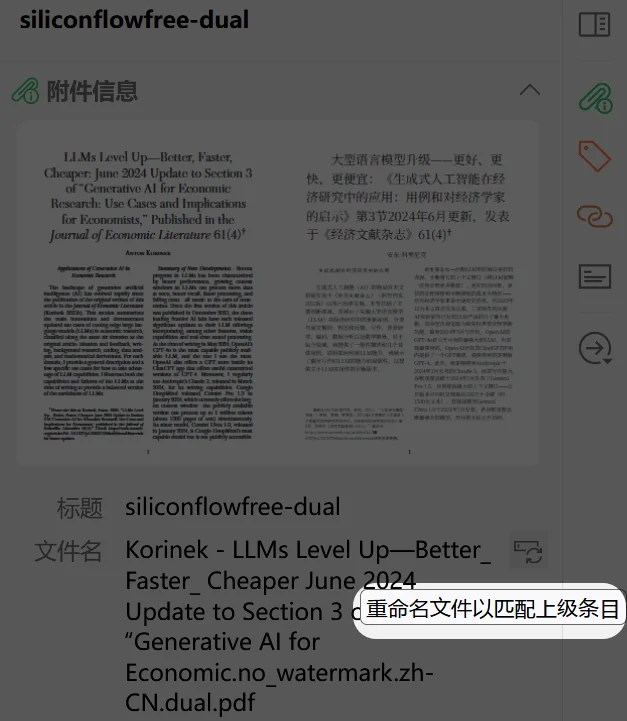
The old right-click option “Rename File from Parent Metadata” has disappeared. It is replaced by automatic synchronization: when you modify item metadata, such as the title, Zotero can update the attachment filename automatically. You can also click the Rename File to Match Parent Item button in the right information pane2.
This image shows the familiar “Rename File from Parent Metadata” option in Zotero 7:

In Zotero 8, you will more often see the Rename File to Match Parent Item button in the right pane, or Zotero will synchronize it automatically:
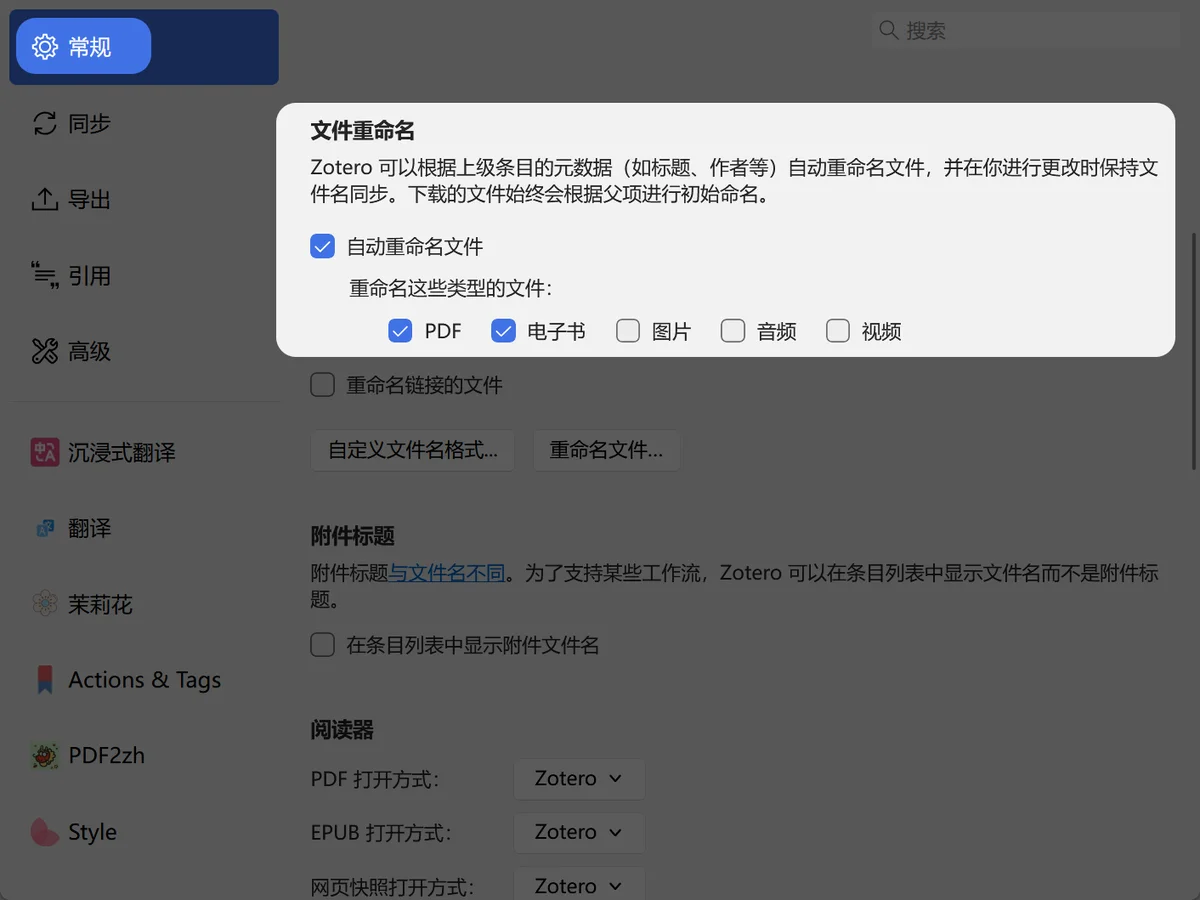
You can also configure which file types should be renamed automatically under Edit → Settings → General.
The Reader Adds an Appearance Panel#
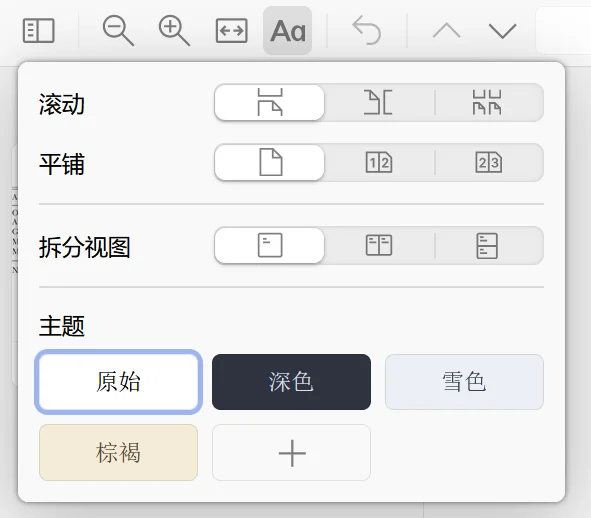
Zotero 8 adds an Appearance panel to the PDF reader. It lets you adjust reading views quickly and supports theme switching.
Built-in themes include Dark, Snow, and Sepia. You can also define custom foreground and background colors to create your own theme. Different themes can now be set separately for light mode and dark mode.
There used to be an option called “Use Dark Mode for Content.” When enabled, it inverted image colors inside PDFs, which looked awkward. With the new theme system, images are only slightly dimmed in dark mode instead of being inverted. Images and ink annotations in the reader sidebar and note editor behave the same way: dimmed, not inverted.
This is Zotero 7’s PDF reader:

This is Zotero 8, with the new Appearance panel where themes and view settings are centralized:
Web Snapshots Now Have Reading Mode#
Saved web snapshots now support reading mode. Zotero reformats the page, removes distracting elements such as ads and navigation bars, and keeps only the main content. You can also adjust line height and other view options in the Appearance panel, which makes reading much more comfortable.
This is a Zotero 7 web snapshot, mostly preserving the original web-page structure:
This is Zotero 8’s reader Appearance panel:
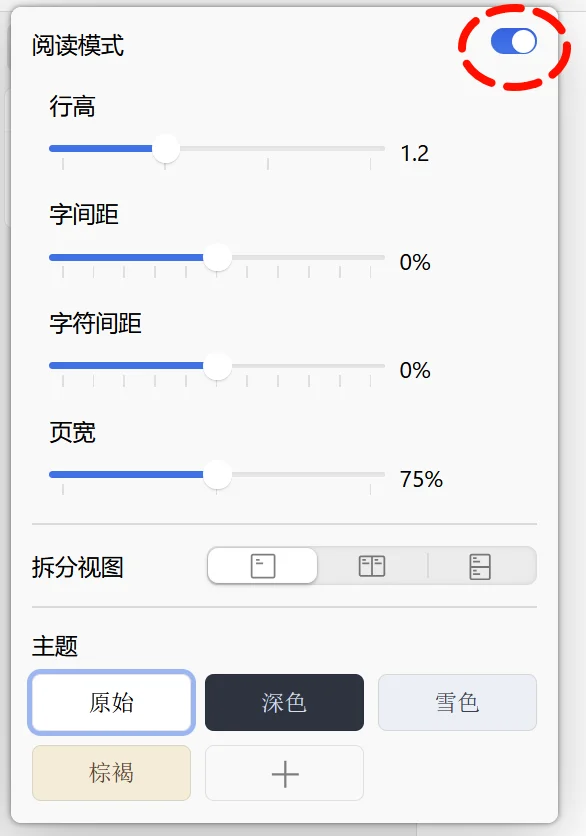
And this is the web reading mode in Zotero 8, which feels more like an article view:

Other Improvements Worth Noting#
Smarter Attachment Titles#
Starting with Zotero 7, attachment titles were handled more cleanly through attachment titles: simple labels such as “Full Text PDF” or “Preprint PDF” are preserved instead of directly showing the filename. Zotero 8 further improves renaming and title-setting logic, especially when multiple attachments are added.
The new version also adds Standardize Attachment Titles under Tools → Manage Attachments. It can batch-convert older main attachments whose titles match filenames into concise titles such as “PDF.”
The default setup is still recommended: let Zotero rename main files and display concise titles. But if you prefer seeing filenames, you can now check Show attachment filenames in item list under Settings → General.
Good News for ARM Linux Users#
Zotero 8 adds an ARM64 Linux build. This means ARM-based Chromebooks, Apple Silicon Macs running Linux, including Linux virtual machines and Asahi Linux, and Raspberry Pi devices can now run Zotero natively.
If you previously could not run Zotero because of device architecture, or had to run the x86_64 version through emulation, you can now try the native build.
Smoother Interface Operations#
- A new button in the library tab quickly closes the item pane, without dragging edges or digging through menus.
- You can reorder sections in the item pane by dragging icons in the side navigation bar.
- Items, collections, and saved searches can be dragged directly to the trash.
- Attachments, notes, and related items can be dragged from the item pane, for example to copy files to the file system or use quick copy.
- When dragging items over a collection, the collection expands automatically, making it easier to place items into subcollections.
- Attachments can be deleted directly from the item pane.
- When closing tabs, tab sizes remain stable, making it easier to close several tabs in a row.
For more details, see the changelog.
Things to Know Before Upgrading#
Older Systems Are No Longer Supported#
Zotero 8 no longer supports Windows 7/8 or macOS 10.14 and earlier. The official system requirements are macOS 10.15+ and Windows 10+. If your system is old, think carefully before upgrading.
Plugins May Need Time#
Zotero 8 upgrades its base to Firefox 140 ESR, so plugins need updated compatibility declarations. Most plugins may only need minor changes, but if you rely heavily on plugins, check whether your core plugins already support Zotero 8 before upgrading.
Memory Usage Still Exists#
Zotero has an old problem: memory usage can be very high. This issue has existed since earlier versions and is not fixed in Zotero 8. If your library is very large, or if you keep Zotero open for long periods, you may still encounter high memory usage.
Tools Should Improve Efficiency, Not Create Busywork#
Zotero 8 does not bring a disruptive overhaul. Most changes are detail-level refinements. The citation dialog is smoother, annotations are easier to find, and reading feels more comfortable. Together, these small improvements make daily use less troublesome. If your system and plugins support it, take a minute to upgrade. A good tool should help us spend more energy on the work that actually matters.