Introduction#
Visual Studio Code (VS Code) is Microsoft’s cross-platform code editor. It is free and built on the open-source Code - OSS project; the official distribution includes Microsoft customizations and license terms, so the precise wording is built on open source rather than completely open source.
For beginners, the interface and settings can feel unfamiliar. This guide walks through download, installation, Chinese UI setup, interface basics, useful extensions, and theme customization. The examples mainly use Windows, with macOS and Linux notes.
1. Download and install VS Code#
1.1 Download from the official site#
Open https://code.visualstudio.com/Download. The page detects your system and shows the matching download button.
- Windows: use the User Installer
.exefor most users. It supports background updates and does not require administrator permissions. The System Installer installs for all users; the ZIP portable version writes less to the system but does not auto-update. - macOS: download the
.zip, unzip it, and get Visual Studio Code.app. - Linux: use
.deb,.rpm, Snap, or the official apt repository.
1.2 Install#
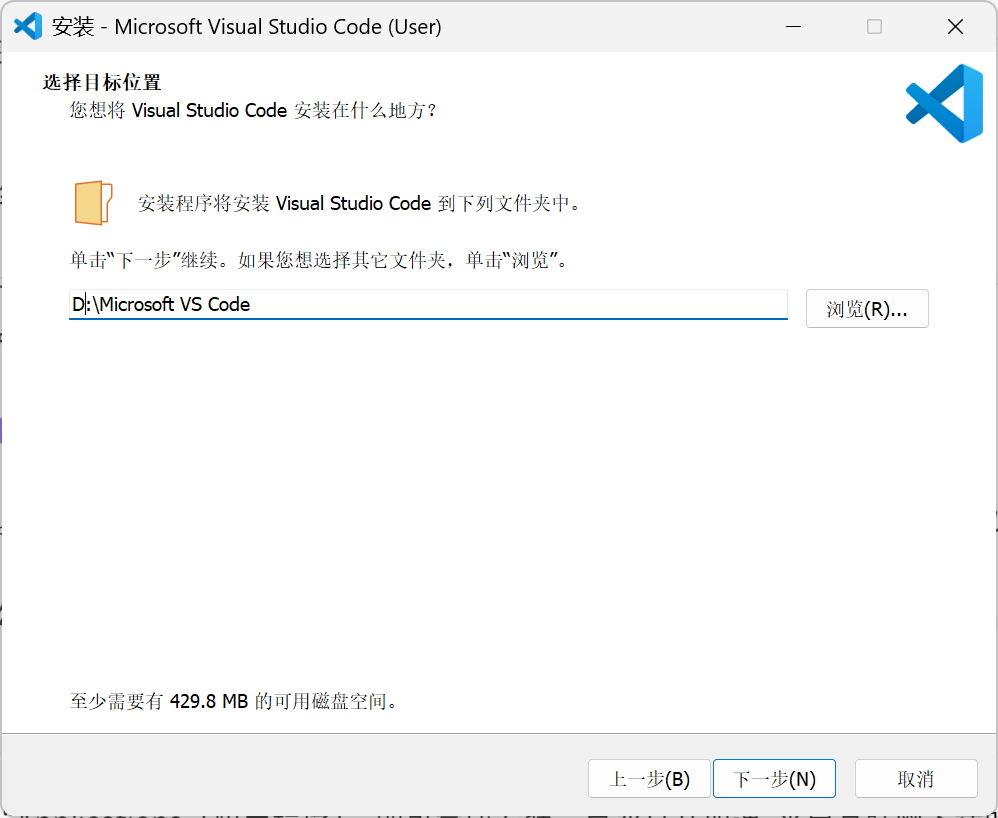
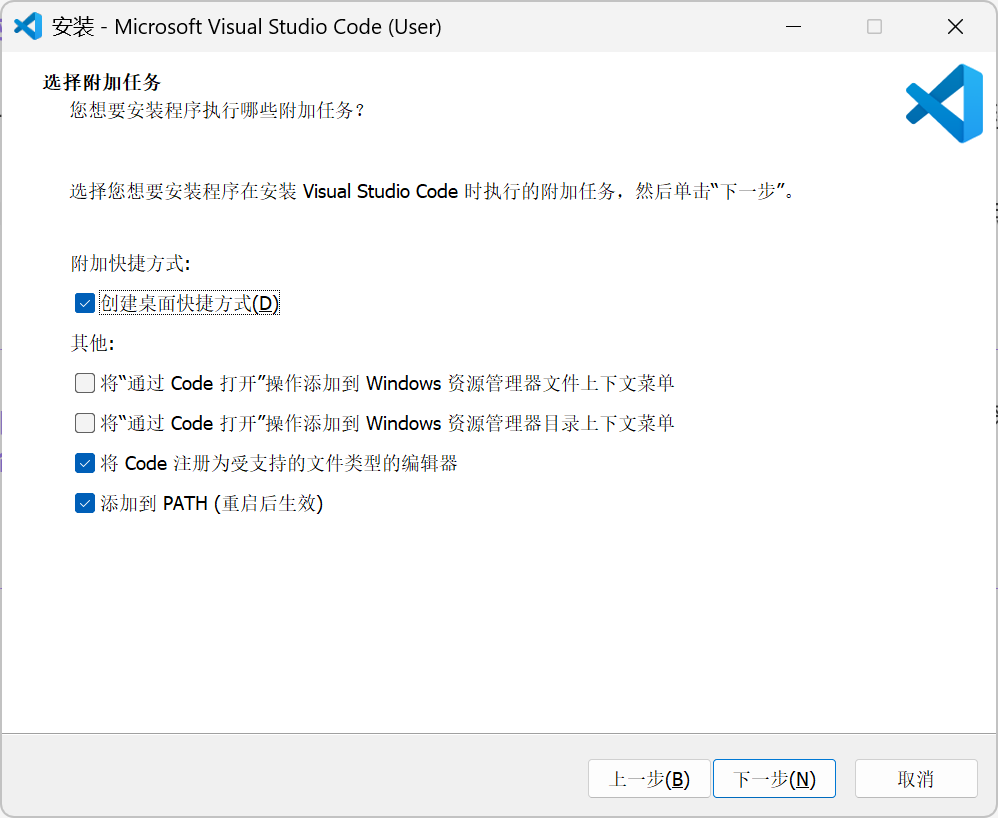
On Windows, run the installer, accept the license, choose the install path, keep the default Start Menu folder, and select useful additional tasks such as desktop icon, adding VS Code to PATH, and adding “Open with Code” to File Explorer.
On macOS, unzip the app and drag it to Applications. To use the code command, open the command palette and run Shell Command: Install ‘code’ command in PATH.
On Linux, Snap users can run sudo snap install --classic code. Ubuntu users can add Microsoft’s GPG key and apt repository, then install the code package so updates follow the system package manager.
2. Switch VS Code to Chinese#
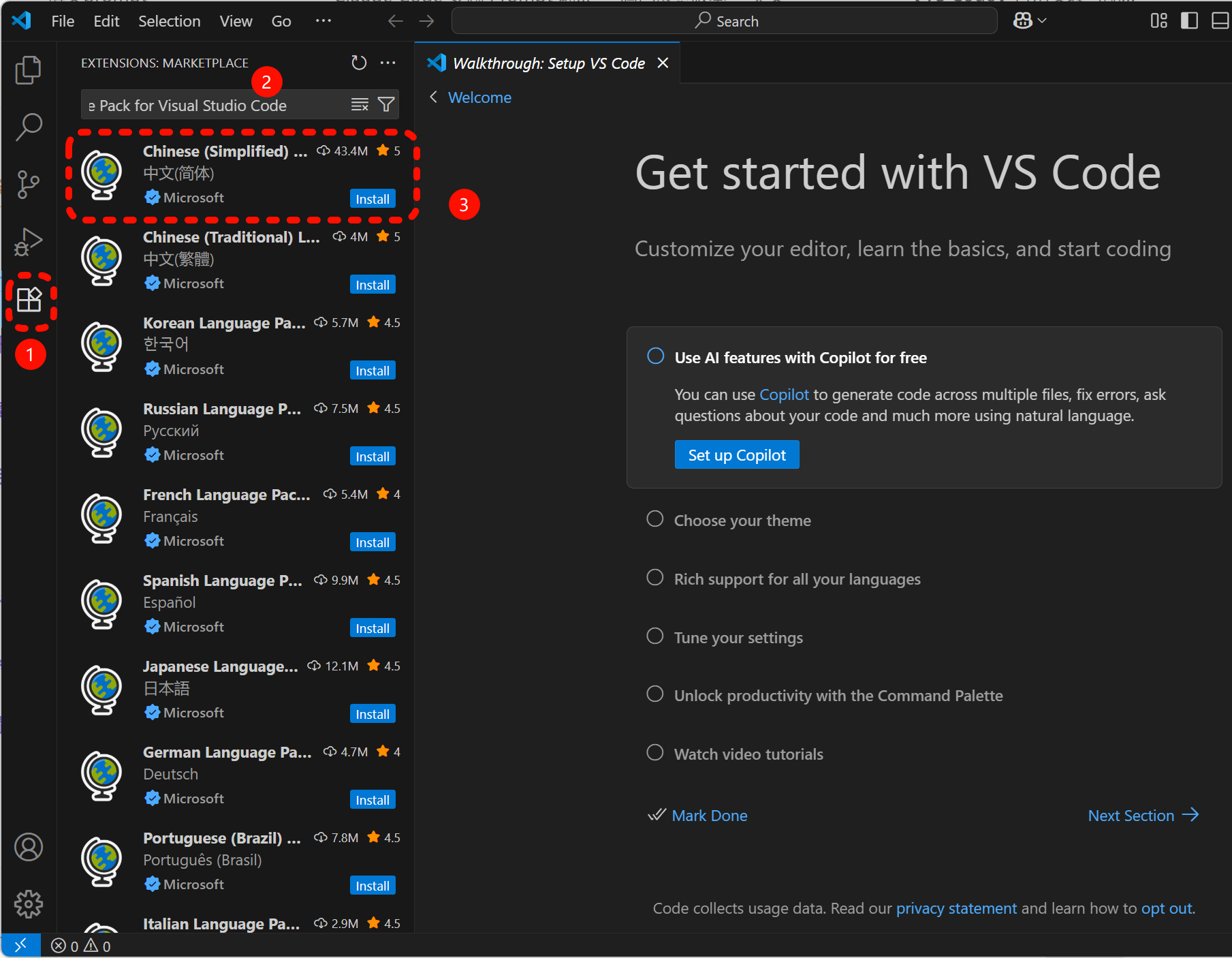
Install the official Chinese (Simplified) Language Pack for Visual Studio Code extension from Microsoft.
- Open Extensions with
Ctrl+Shift+Xor⇧⌘X. - Search
Chineseand install the Simplified Chinese language pack. - Restart when prompted. If you miss the prompt, run Configure Display Language from the command palette and choose
zh-cn.
After restart, menus, sidebars, and settings appear in Simplified Chinese.
3. Understand the interface#
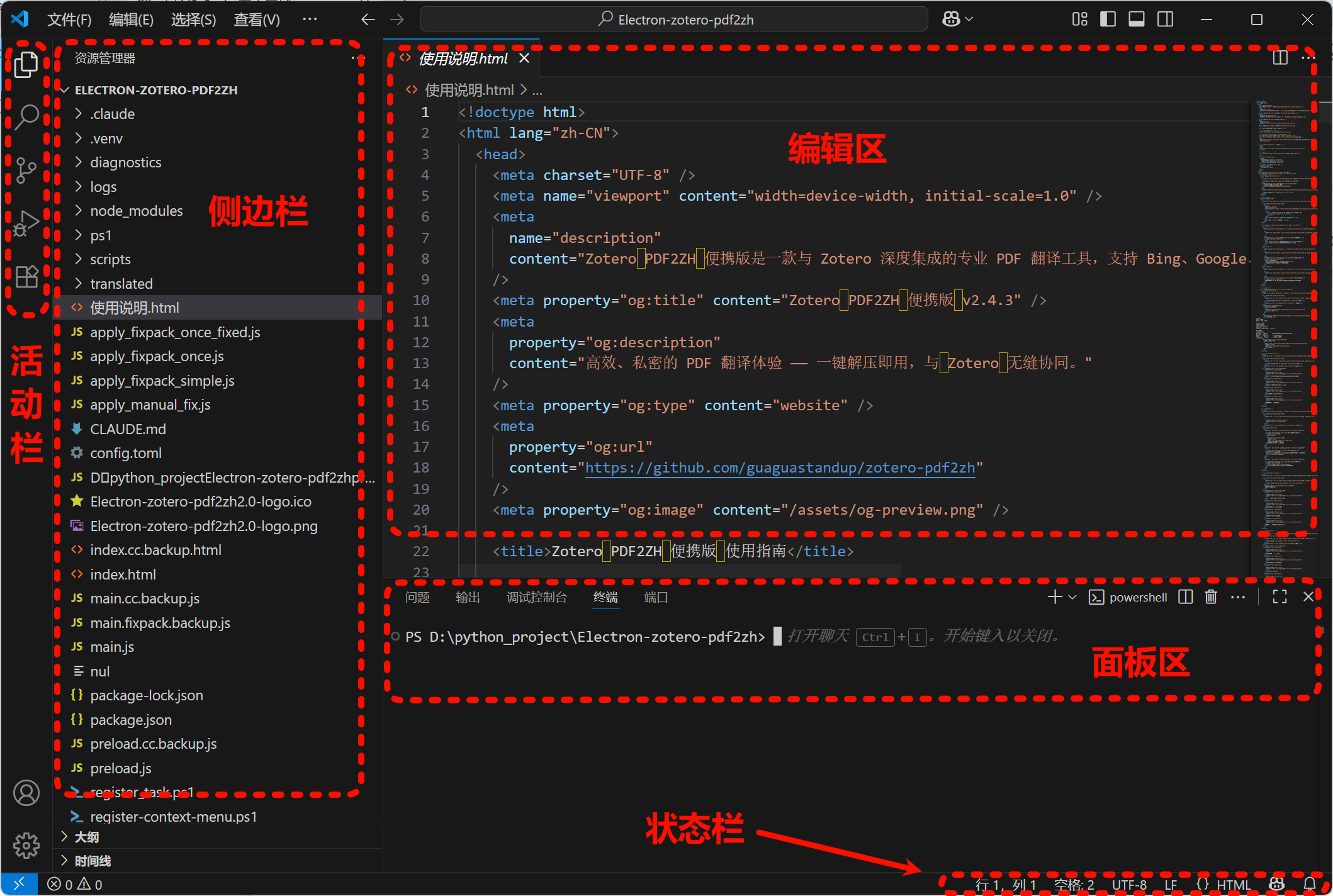
The five main areas are:
| No. | Area | Description | Purpose |
|---|---|---|---|
| 1 | Activity Bar | Narrow icon bar on the far left | Switch between Explorer, Search, Source Control, Run/Debug, Extensions |
| 2 | Side Bar | Wide panel next to the Activity Bar | Shows files or current tool content |
| 3 | Editor | Large center area | Write, view, and compare files |
| 4 | Panel | Bottom area | Terminal, Problems, Output, Debug Console |
| 5 | Status Bar | Bottom bar | Branch, encoding, line endings, language mode, extension status |
Use Ctrl+` to open or hide the integrated terminal.
4. Install extensions and customize the editor#
Recommended beginner-friendly extensions:
- Chinese (Simplified) Language Pack: Chinese UI.
- GitHub Light Theme: clean light themes including high-contrast and colorblind variants.
- One Dark Pro: popular dark theme.
- Claude Code for VS Code: connects Claude Code workflows into VS Code, requiring the Claude Code CLI.
- Cline: local-first AI coding agent with Plan and Act modes and permission gates.
- Material Icon Theme: colorful file and folder icons.
- Prettier - Code Formatter: automatic formatting for JS, TS, JSON, HTML, CSS, and more.
- GitLens: enhanced Git history, blame, branches, and comparison views.
- Live Server: local live preview for static web pages.
- Better Comments: highlighted comment categories.
Install extensions through the Extensions view, search by name, verify the publisher, and click Install. Themes and icon themes can be applied from the install prompt or through the command palette.
To change color themes, run Preferences: Color Theme or press Ctrl+K then Ctrl+T (macOS: ⌘K then ⌘T). To change file icons, use File → Preferences → File Icon Theme or search Icon Theme in the command palette.
5. Daily usage basics#
- Open a project or file: VS Code usually works with folders. Use File → Open Folder to load a project, or Open File for a single file.
- Edit and save: use
Ctrl+S; enable Auto Save if desired. The editor supports completion, multi-cursor editing, folding, search, and replace. - Run code: use the integrated terminal for commands such as
python hello.py, or install Code Runner for simple one-click runs. Front-end pages work well with Live Server. - Use the terminal: open Terminal → New Terminal or
Ctrl+`. It starts in the current workspace folder. - Use Git: the Source Control view shows changes, lets you commit, pull, and push, and GitLens adds more context.
- Search and replace: use the Search view for project-wide search and cautious batch replacement.
- Settings: open the gear icon and Settings UI to change fonts, auto save, formatting, minimap, bracket colors, and more.
FAQ#
Q1: I installed the Chinese language pack, but the UI is still English.
Restart VS Code, confirm the extension is enabled, run Configure Display Language and choose zh-cn, or reinstall the language pack. Some third-party extensions may still show English text.
Q2: How do I restore default settings?
Disable or uninstall suspicious recent extensions, reset settings in the UI or settings.json, or back up and clear the user data directory (%APPDATA%\Code\ on Windows, ~/Library/Application Support/Code on macOS, and ~/.config/Code on Linux). Back up snippets and extension lists first.
Congratulations. You have completed the beginner path: installation, localization, interface basics, extensions, customization, and daily workflow. VS Code is not hard to learn, and practice will turn it into a productive tool.
Screenshots and media#
Preserved command, configuration, and prompt blocks#
| |
| |