[Docker] Escape Environment-Setup Nightmares: A Beginner Installation Guide
A 2025 beginner-focused Docker installation guide covering Windows with WSL2, macOS on Apple Silicon or Intel, Linux, mirror acceleration, verification commands, and first-container testing.
Before diving into commands, it is worth clarifying what Docker is. In simple terms, Docker is like a standardized magic container. It packages your application together with everything it needs: code, runtime libraries, environment variables, configuration files, and dependencies.
Move that container to a Windows laptop, a colleague’s Mac, or a Linux server, and the application should run the same way. The classic complaint “it works on my machine” becomes much less frequent.
For developers and beginners, Docker offers immediate benefits:
Escape environment-setup nightmares: deploy complex applications without fighting dependency conflicts.
Keep the host system clean: development environments stay isolated in containers.
Share and collaborate easily: others can run the same project without manual setup.
Step into cloud native: Docker is the first stop toward Kubernetes, microservices, and modern deployment.
Download the .dmg for Intel or Apple Silicon, drag Docker into Applications, open it, and approve the requested permissions. Homebrew users can also install with brew install --cask docker. Apple Silicon users who need x86-only images may install Rosetta 2.
Remove old conflicting packages, add Docker’s official GPG key and apt repository, then install docker-ce, docker-ce-cli, containerd.io, Buildx, and Compose. Start and enable the service with systemctl.
Run docker run hello-world. If you see Hello from Docker!, image download and container execution are working. docker info shows version, storage driver, image/container counts, and is useful for troubleshooting.
By default, docker pull downloads from Docker Hub and may be slow in some networks. Configure mirrors in Docker Desktop under Settings → Docker Engine by adding a registry-mirrors array, then click Apply & Restart. On Linux, edit /etc/docker/daemon.json, add the same mirror list, and restart Docker.
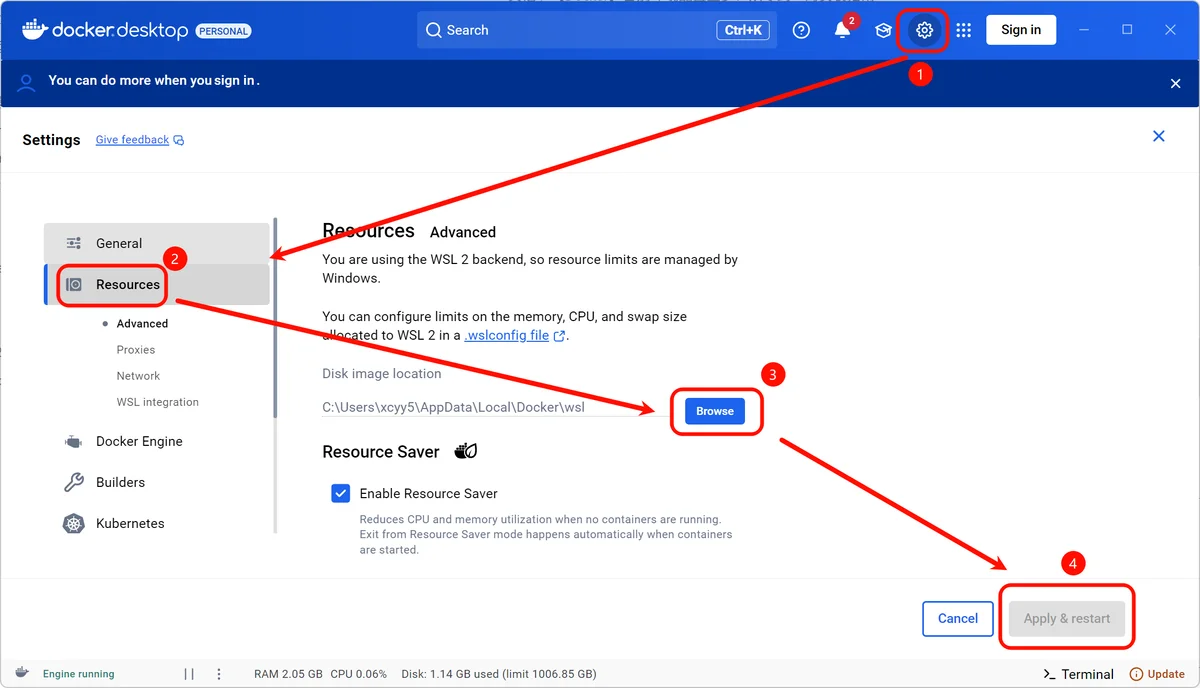
On Windows, Docker or IDE resources stored on the system drive can hit permission or space issues. In Docker Desktop, open Settings → Resources, choose Browse, select a non-system drive such as D:\Docker_Resources, and click Apply & Restart. Prefer a fast SSD partition for better I/O.
Uninstalling Docker can remove local images, containers, volumes, and networks, so back up important data first. Docker Desktop can be removed from Windows Apps or the macOS troubleshooting menu. On Ubuntu, purge Docker packages and remove /var/lib/docker and /var/lib/containerd if you really want a clean uninstall.
Docker Desktop includes automatic updates. Docker Engine installed through apt can be upgraded with normal package updates.
This article explains how to download, install, and configure the Cherry Studio AI assistant desktop client on Windows, covering LLM service setup and common shortcuts so you can get started quickly and use it efficiently.
This article explains how to download and install R, RTools, and RStudio, including choosing a suitable CRAN mirror, configuring the correct installation path, and setting environment variables so you can set up an R development environment easily.
A beginner-friendly guide to configuring PDF2zh 2.0 and the Zotero plugin through Windows .exe, local uv, and Docker deployment, helping you build an efficient research-translation workflow.
Use multimodal models such as GPT-4o with three reusable prompts to load PDFs, summarize article structure, generate deep-reading notes, and produce mind-map-ready references for research reading.
Use custom prompts in PDFMathTranslate and Zotero for pdf2zh to improve academic translation quality while preserving structure, formatting, citations, and formulas.
This article shows two practical ways to build English bibliographic records for Chinese literature in Zotero: automatic capture through Google Scholar and manual metadata entry, so Word citations stay accurate and efficient.
Explore Bohrium AI Search for second-level retrieval across 160 million papers, plus knowledge bases, notebooks, subscriptions, and other research-cloud functions that improve discovery and research efficiency.
Metaso AI Search, built by Shanghai Metaso Network Technology, combines its MetaLLM model with an ad-free structured AI teacher. It can generate step-by-step explanations, slides, mind maps, and multimodal outputs for study, research, and work.
This article explains two practical ways to center equations and place equation numbers on the right in Word, including LaTeX syntax and custom styles, with detailed steps and notes to improve document formatting efficiency.