Introduction#
When entering equations in Word, we often need to add a number on the right side of the equation, such as (1). However, manually typing spaces is time-consuming and error-prone. Today, I will introduce two methods that automatically center the equation while keeping the number fixed on the right.
Methods#
Method 1: Use #(1)#
This method is very simple:
- In the menu above the equation, select
LaTeXmode. - Enter
#(1)at the end of the equation, then press Enter.
Note: When pressing Enter, make sure the cursor is behind #(1), otherwise the equation may display incorrectly.
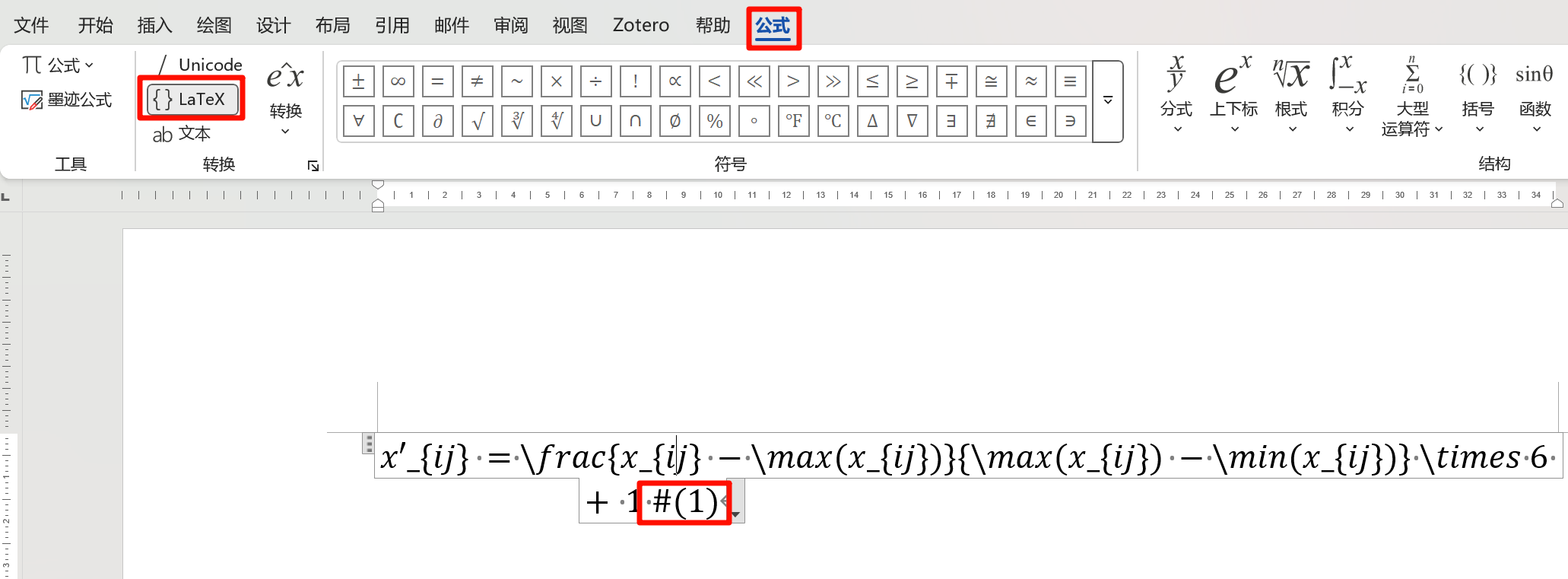

Although this method is simple, it may sometimes be unstable, and the font of the number (1) cannot be adjusted.
Method 2: Set a Style#
Another method is to create a custom style. The steps are as follows:
Open the Styles panel Click the
Homemenu at the top of Word, and click the dropdown button in theStylesarea.
Create a new style Choose
Create a Style(S)and name it “Equation.”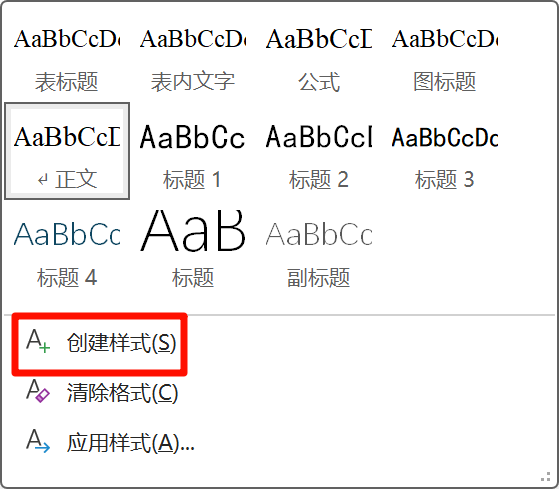
Modify the style Find the newly created “Equation” style, right-click it, and choose
Modify.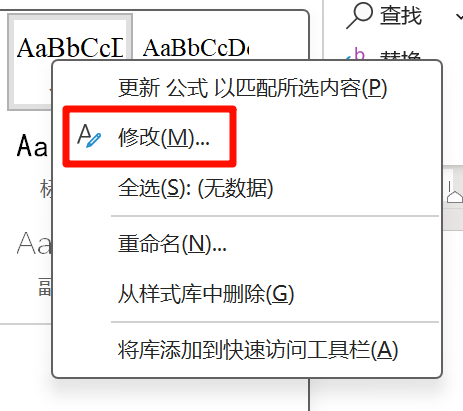
Adjust formatting Modify the font, paragraph, and other settings as needed.
Set equation centering and right-aligned numbering
- First confirm the paper size and page margins, which can be checked under
Layout. The default is usually A4 paper (21 cm × 29.7 cm) with normal margins of 3.18 cm on both left and right. - Calculate the positions:
- Equation center position: $[(page width - left margin - right margin) / 2 = (21 - 3.18 - 3.18) / 2 = 7.32\text{ cm}]$
- Right-aligned number position: $[page width - left margin - right margin = 21 - 3.18 - 3.18 = 14.64\text{ cm}]$
- First confirm the paper size and page margins, which can be checked under
Set tab stops Go to
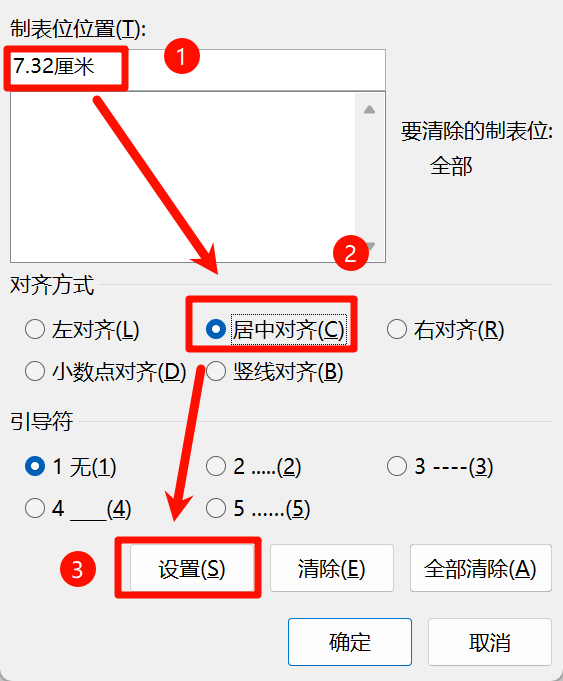
Format>Tabs, then follow these steps:- Enter
7.32 cm, selectCenter, and click “Set.” - Enter
14.64 cm, selectRight, click “Set,” and then click “OK.”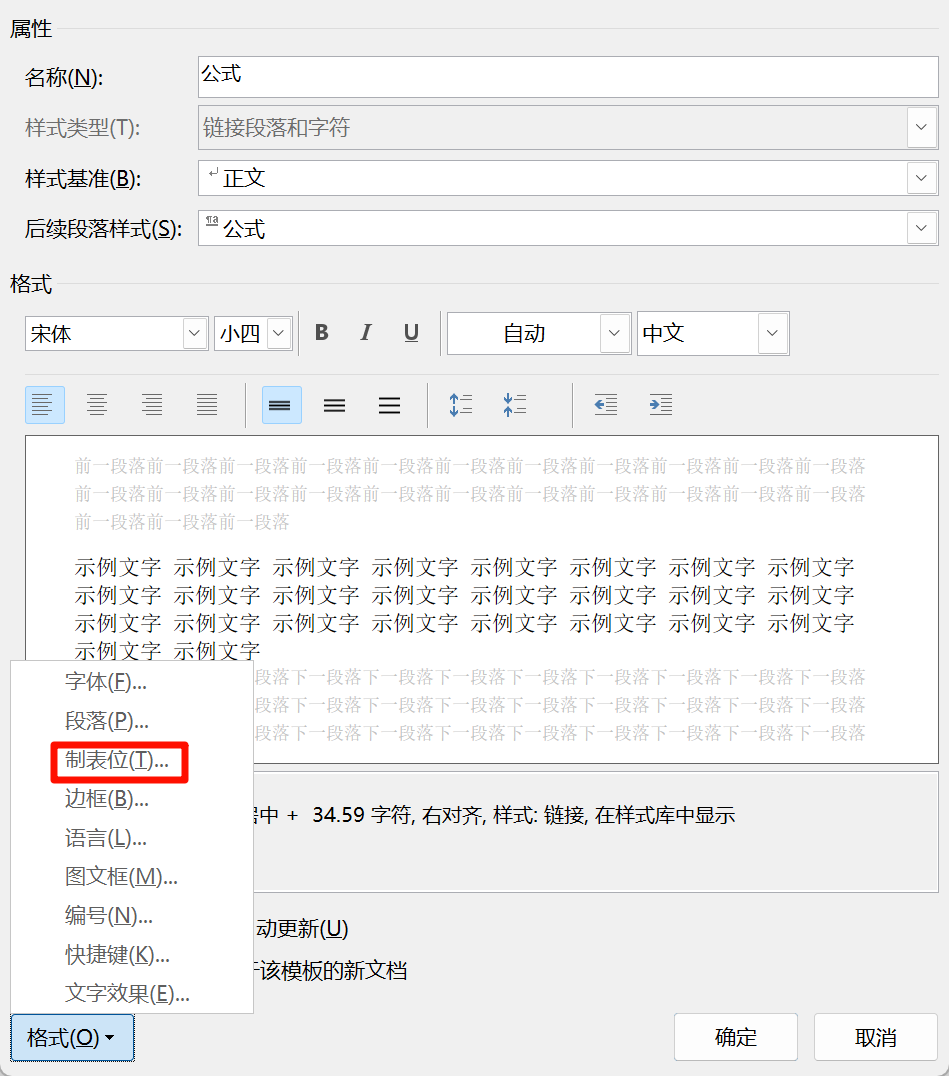
- Enter
How to use it When entering an equation, first press
Tabonce, then enter the equation content. PressTabagain and enter the number.
Quickly Insert an Equation Box#
Press ALT+= to enter the equation. After finishing the equation, press Ctrl+= and you are done.
With the two methods above, you can easily center equations and right-align equation numbers. I hope this article helps you.