Background#
Recently, PDFMathTranslate released a plugin compatible with Zotero. After some exploration, I was able to use it normally, so I organized this guide to share with everyone.
Project link: Zotero PDF Chinese translation plugin
Usage Steps#
Step 1: Install or Update pdf2zh#
For a first-time installation, use:
| |
If it is already installed, run the following command to update it to the latest version:
| |
Step 2: Download and Install the Zotero Plugin#
Search for “pdf2zh” on the Zotero Chinese Community, or go directly to the plugin release page zotero-pdf2zh and download the plugin file ending in .xpi. You can also install it through Zotero’s plugin marketplace.
After downloading:
- Open Zotero and click
Tools → Plugins; - Drag the downloaded
.xpiplugin file directly into the plugin window to install it automatically.
Step 3: Configure the Script and Related Files#
Add the Configuration File#
1. Create and Configure config.json#
Create a file named config.json anywhere on your computer and fill it with the following template:
| |
For the font path (
NOTO_FONT_PATH), I recommend using an absolute path. For specific settings, refer to: example config.jsonIf you are not sure how to fill in the configuration, you can check it through the GUI:
- Run this in the command line:
1pdf2zh -i - In the GUI that appears, choose the corresponding translation service, such as OpenAI. Copy the information in the
Optionfield, such asOPENAI_BASE_URL, intoconfig.json.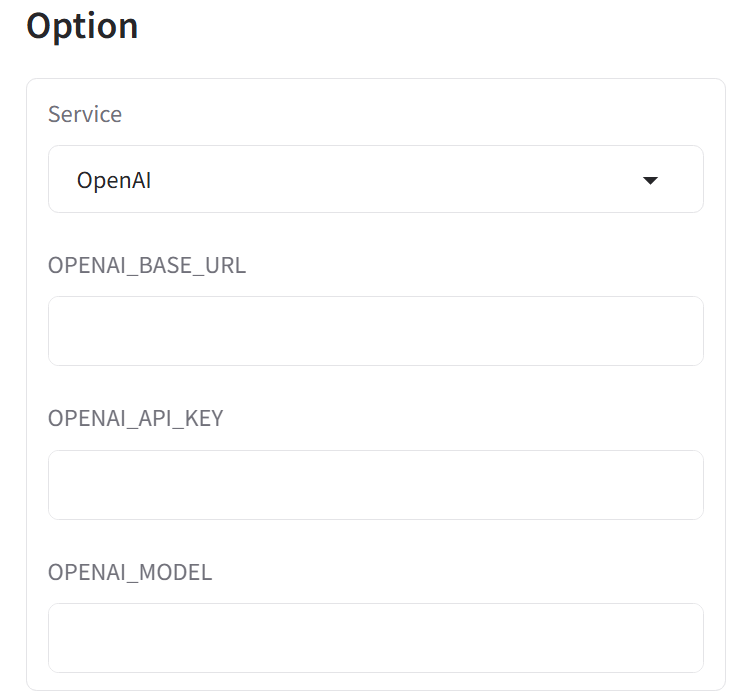
- Run this in the command line:
How to view the font path on Windows:
Open C:\Windows\Fonts, or press Win + i, search for “Fonts,” open “Font settings” → “Legacy font control panel,” find the corresponding font, right-click it, choose “Properties” → “Security,” and copy “Object name.” That is the font path.
Note: replace \ in the path with / or \\.
2. Create and Configure server.py#
Copy all the code from server.py, create a new file named server.py, and paste the code into it.
The parts that need to be changed are the default configuration in the script:
| |
I recommend using absolute paths. For example, copy the path with Ctrl + Shift + C:
| |
3. Configure the Zotero Plugin#
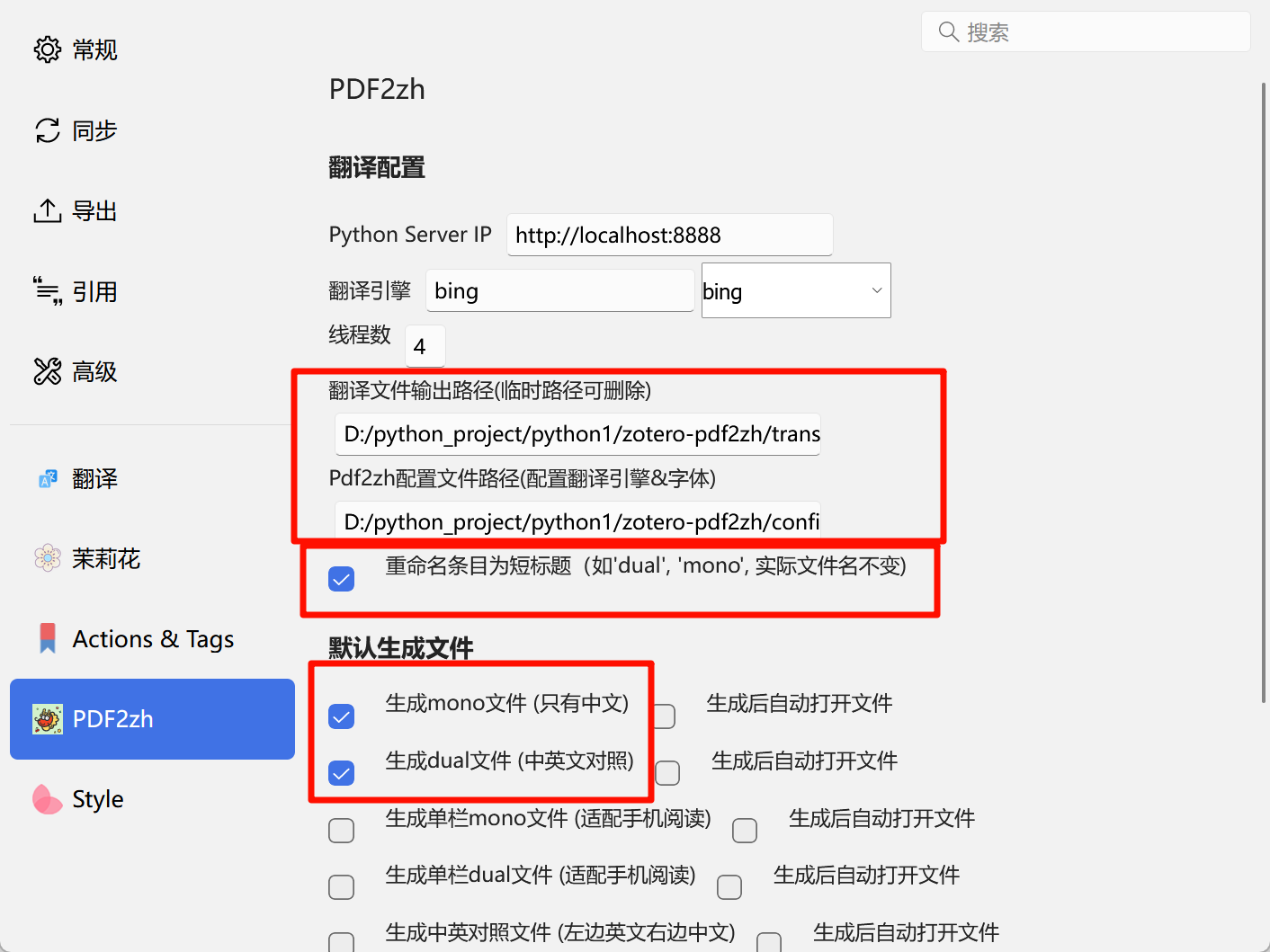
Open Zotero and go to Edit → Settings → pdf2zh:
- The “translation configuration” content must match the path in
server.py. - If you switch translation services, first confirm that
config.jsonis correct, and then adjust the plugin configuration here. - I recommend checking “Rename item to short title” to prevent translation failure caused by overly long file paths.
- Choose the “default generated files” options according to your own needs.
How to Use the Plugin to Translate PDFs#
- First run the
server.pyscript:
| |
- Then find the literature PDF you want to translate in Zotero and right-click it:
- Choose
PDF2zh: Translate PDFto start translation; - By default, two files are generated:
dual: original and translated pages alternate one by one;mono: translated-only version.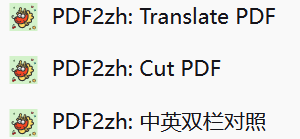
The plugin also provides two other useful functions:
- PDF2zh: Cut PDF
- Cuts a two-column PDF into a single-column PDF, which is more suitable for reading on mobile devices.
- The generated single-column PDF filename contains the
cutmarker.
- PDF2zh: Chinese-English side-by-side
- Processes the translated
dualfile into a Chinese-and-English two-column comparison format. - The generated filename contains the
comparemarker.
- Processes the translated
Common Error Handling#
If the server response fails, it is usually caused by an error in the configuration file (config.json) or script (server.py).
Please carefully check the following:
Python and dependency environment
- Use Python 3.10–3.12.
- Make sure
pdf2zh,flask,pypdf,pdfminer.six==20250416, and other dependencies are installed correctly.
Tool version matching
- Recommended:
pdf2zhv1.9.6. - Recommended:
zotero-pdf2zhplugin v2.4.1 or later.
- Recommended:
Valid and existing paths
- The font path is correct and exists.
- All paths should preferably be absolute paths.
- Avoid Chinese characters, spaces, or special characters in paths.
- Replace
\in paths uniformly with/or\\.
Configuration file settings
config.jsonshould be in the same directory asserver.py, or passed in as a full path through parameters.- The JSON format must be valid. Pay attention to closing punctuation, such as quotation marks and commas.
- The
translatorsfield should contain the translation service you enabled and provide complete credentials.
Python script execution
- The startup port of
server.pyshould match the Zotero plugin settings. - Before starting the script, I recommend using
cdto enter the directory where the script is located. - If you change the port, update the port configuration in the plugin at the same time.
- The startup port of
Zotero plugin settings
- The translation parameters in the plugin must correspond to
config.jsonand the script configuration. - The output path should be simple and should avoid exceeding the operating system’s path-length limit.
- The translation parameters in the plugin must correspond to
Translation-service suggestions and fallback strategy
- Prefer Bing or Google Translate first, because their setup is simpler and their responses are faster.
- If translation fails, switch to Bing first to verify the configuration file, then try other services such as Deepseek or SiliconFlow.
Port and dependency conflicts
- If the port is occupied, try changing the default port in
server.py. - If you encounter dependency errors, reinstall the corresponding libraries according to the officially recommended versions.
- If the port is occupied, try changing the default port in