Introduction#
In January, I introduced PDFMathTranslate, a very useful PDF translation tool that can preserve the original formatting completely. I also shared a video on using domestic large models for translation, including deepseek and Tongyi Qianwen. After the videos were published, I received many questions and also discovered some new details. So I am summarizing and answering the common questions here so we can learn and discuss together. It should be noted that this software was not developed by me. I am only a user. Project link: PDF scientific paper translation with preserved formats - AI-based full-text bilingual PDF document translation with preserved layout.
Question 1: How Can Images and Tables Be Translated?#
Because translating figure and table content directly can easily disrupt the final document layout, the software automatically skips figures and tables during translation. Here is my personal method for handling image and table translation:
- Image translation: Copy the text from the image and translate it separately. The translated result can be used as an annotation.
- Table translation:
- Take a screenshot of the table, send it to a large model, and add this prompt: “Please translate this table and output it in table/markdown code format.”
- After getting the translated table, you can either save it as a screenshot or copy the markdown code into software that supports markdown for further processing.
- Example:
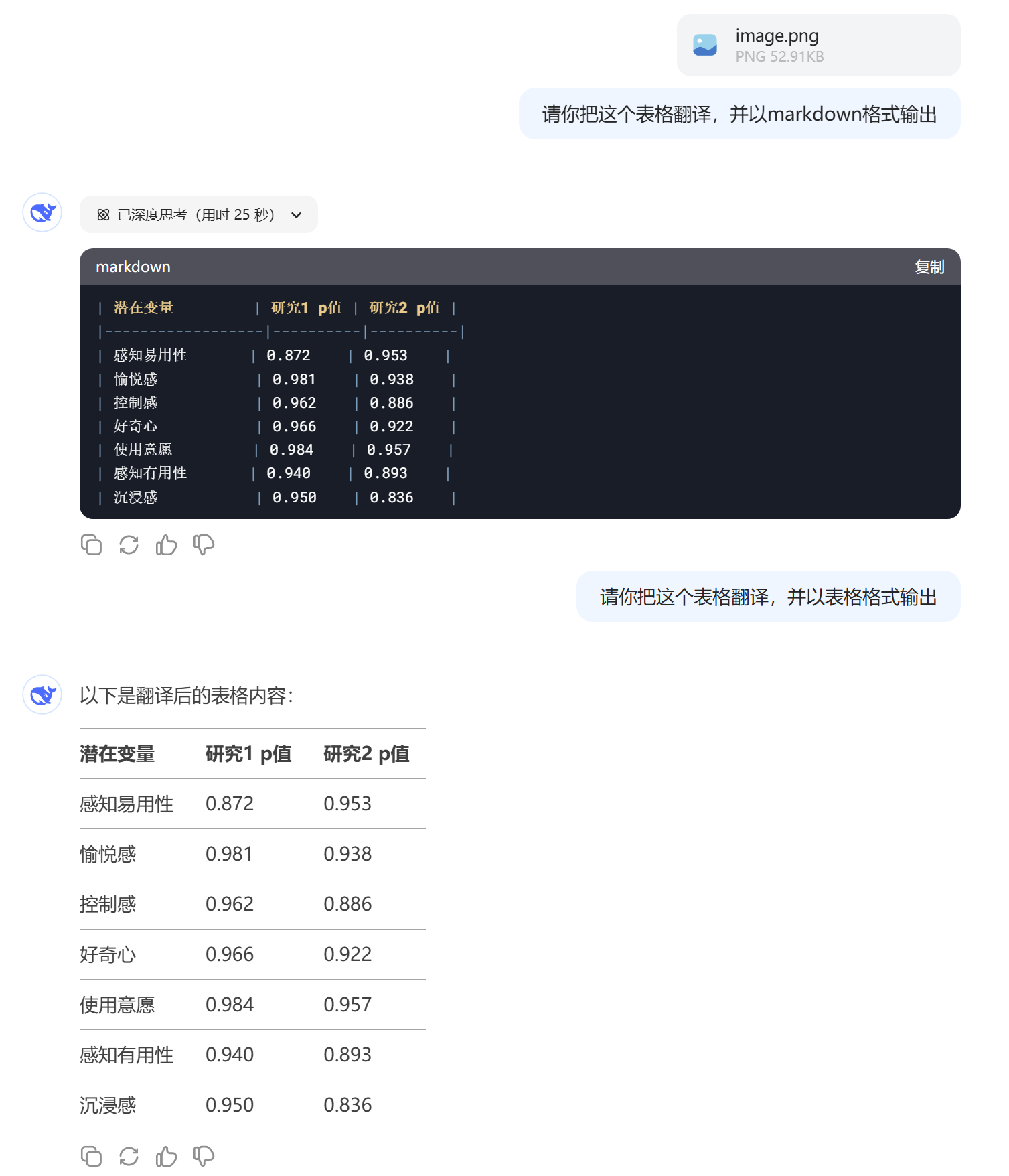
- If you do not have software that supports markdown, ask the large model to output it in table format and then save a screenshot.
- If you do have such software, just copy the markdown code into it.
Question 2: Translation Fails or the Result Is Still in English#
If translation fails or the translated result remains in English, the problem is usually related to the model being used. I recommend avoiding test-version models and choosing stable-release models first.
Question 3: How Many Pages Can Be Translated at Most? Which Model Is Good?#
I once used deepseek-v3 to successfully translate a 370-page document, and I also recommend using deepseek first for the following reasons:
- Affordable price: In my experience, translating 370 pages cost only about 1.55 yuan, including a 30% off-peak discount. Translating 17 pages took about 6 minutes, with the whole process taking around 10 minutes.
- No speed limit: Compared with other providers, deepseek does not strictly limit translation speed. Other services often limit requests per minute or maximum text length, which can cause translation to slow down or fail midway.
For more information on using deepseek for translation, see: PDFMathTranslate: Use domestic large models for translation — deepseek and Tongyi Qianwen
deepseek-v3 Pricing Notes#
| Model | deepseek-chat | |
|---|---|---|
| Context length | 64K | |
| Maximum output length | 8K | |
| Standard-period price (Beijing time 08:30–00:30) | 1M input tokens (cache hit)(4) | 0.5 yuan |
| 1M input tokens (cache miss) | 2 yuan | 4 yuan |
| 1M output tokens (5) | 8 yuan | 16 yuan |
| Discount-period price (Beijing time 00:30–08:30) | 1M input tokens (cache hit) | 0.25 yuan (50% off) |
| 1M input tokens (cache miss) | 1 yuan (50% off) | 1 yuan (75% off) |
| 1M output tokens | 4 yuan (50% off) | 4 yuan (75% off) |
Question 4: With the Same API, Why Is My Speed Slow?#
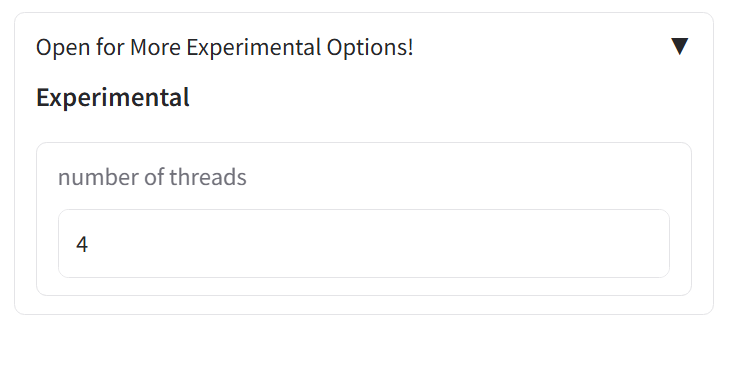
It may be related to the number of threads. The default thread count is 4. Try changing it to 8 or 12.
Question 5: Installation Errors#
Problems may occur during installation, mainly because the program needs to download an AI model (wybxc/DocLayout-YOLO-DocStructBench-onnx), which is often difficult to download smoothly from within mainland China. Here are three solutions:
Use a proxy: Make sure your network proxy is enabled.
Set an environment variable to use a mirror address: Windows command line:
1set HF_ENDPOINT=https://hf-mirror.comPowerShell:
1$env:HF_ENDPOINT = https://hf-mirror.comOffline installation: If none of the above methods works, Windows users can go to the release page, download
pdf2zh-version-win64.zip, unzip it, and double-clickpdf2zh.exeto run it. If the download is slow or the webpage cannot be accessed, I also uploaded the file to Baidu Netdisk, so you can download it directly there.
Also make sure your Python version is between 3.10 and 3.12 (3.10 <= version <= 3.12).
Question 6: There Is No API Key Field in the GUI#
If you open the GUI with pdf2zh -i and cannot find where to enter the API Key, as shown below: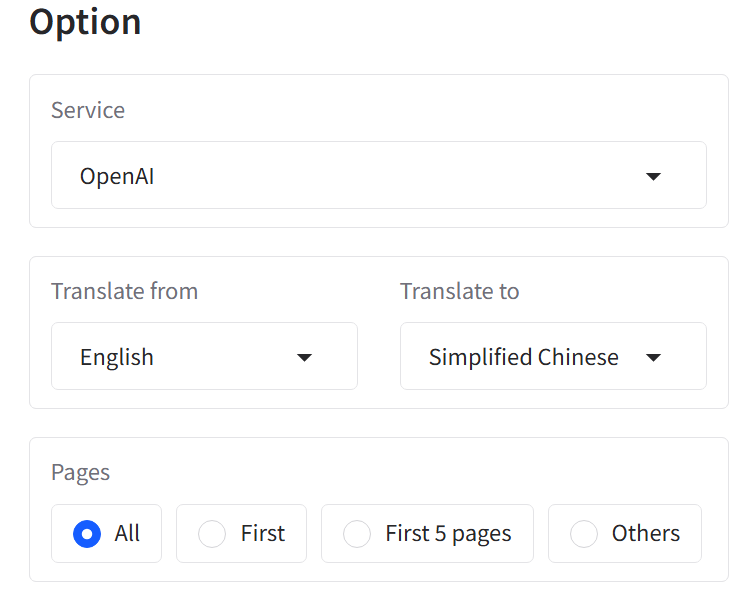
- Turn off the proxy, or change the proxy mode to “rule mode.”
- If you use an overseas translation service, I recommend opening the GUI first and then enabling the proxy.
Question 7: How to Customize the Server Port#
You can specify the server port with the following command:
| |
Question 8: How to Update to the Latest Version#
Use the following command to update to the latest version:
| |
Question 9: Is There a Zotero Plugin?#
Plugin link: zotero-pdf2zh My tutorial: Easily Translate Zotero Literature! A Step-by-Step Guide to Configuring the pdf2zh Plugin
If you have other questions not covered here, you can also refer to: FAQ Common Questions · Byaidu/PDFMathTranslate Wiki · GitHub