Background#
I previously shared many websites that provide color schemes. In this video, I will show you how to use those website-provided color schemes in OriginPro. Related link: Essential Tools for Scientific Figures and Paper Writing: A One-Stop Guide to Efficient Drawing and Literature Resources
Add a New Color Scheme#
In OriginPro, press
Ctrl+Shift+Oto open Color Manager.Click New, then paste the hexadecimal color code copied from the website. The code begins with “#,” for example: #845EC2.
The colors shown on the right, meaning “shown in the interface,” are the colors that can be used in OriginPro. The colors on the left are only saved on the computer and cannot be used directly. Click the arrow in the middle to move them to the right.
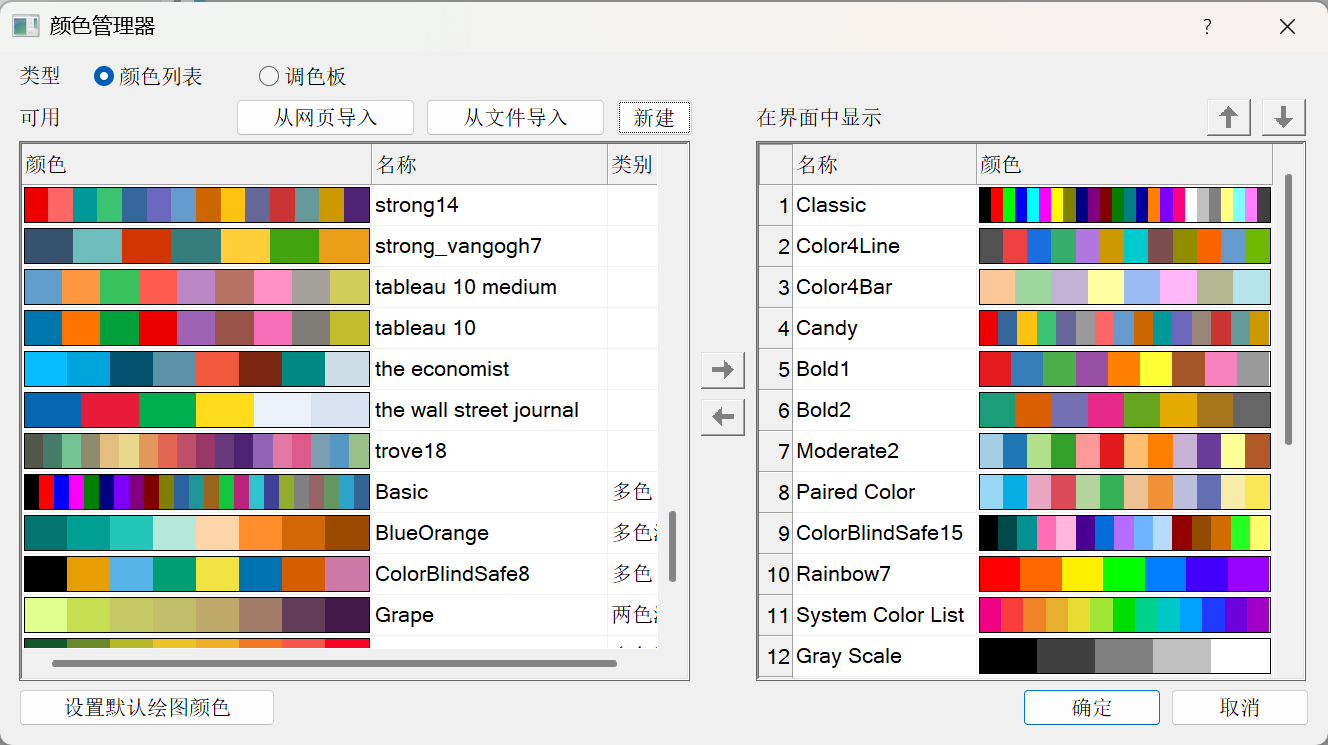
Please note: for the first color, click Replace. For later colors, click Add as New. Of course, you can also click Add as New for all colors and then delete the default first color, which is in the upper-left corner and marked with “-”.
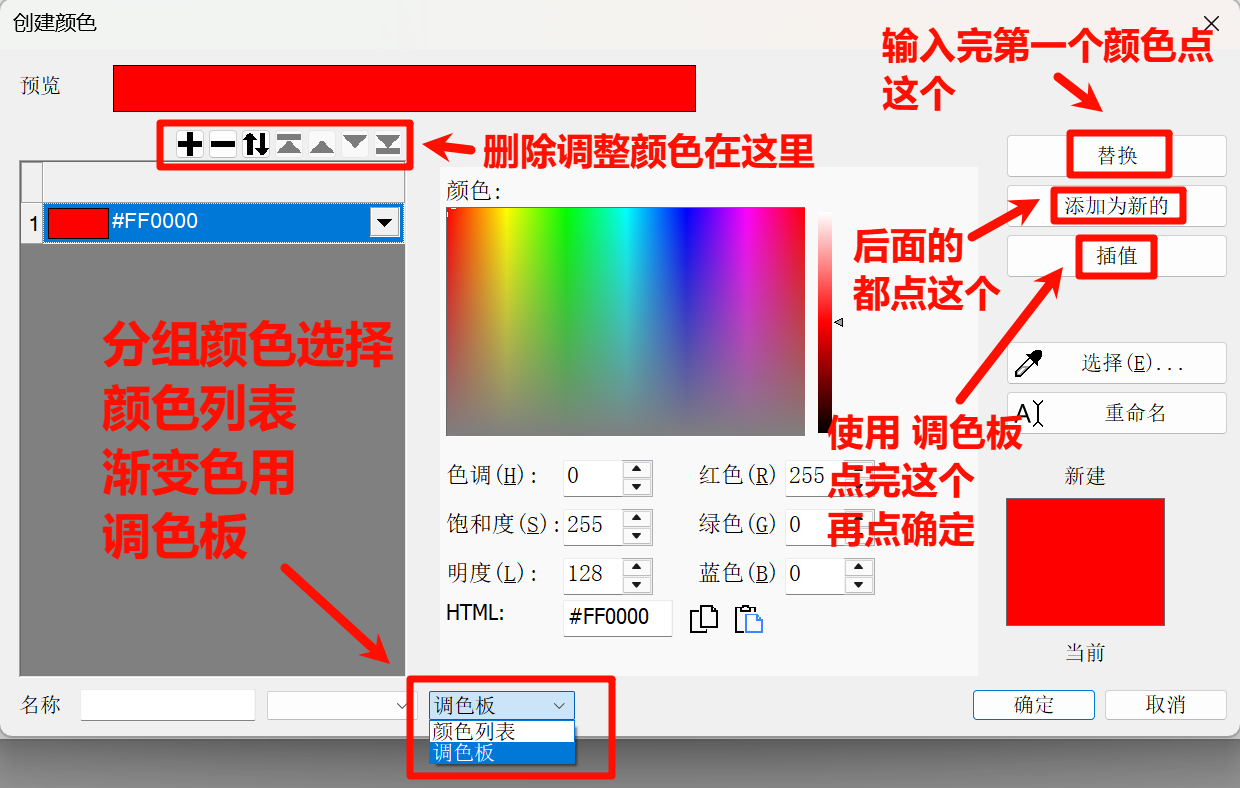
If you need to add gradients, switch to Palette at the bottom. If you need to manage colors in groups, choose Color List. When using Palette, note one more thing: after adding all colors, do not click OK directly. Instead, click the Interpolate button below Add as New, use the default settings, and then click OK.
Change the Default Colors#
- Again, press
Ctrl+Shift+Oto open Color Manager, then click Set as Default Plotting Color in the lower-right corner.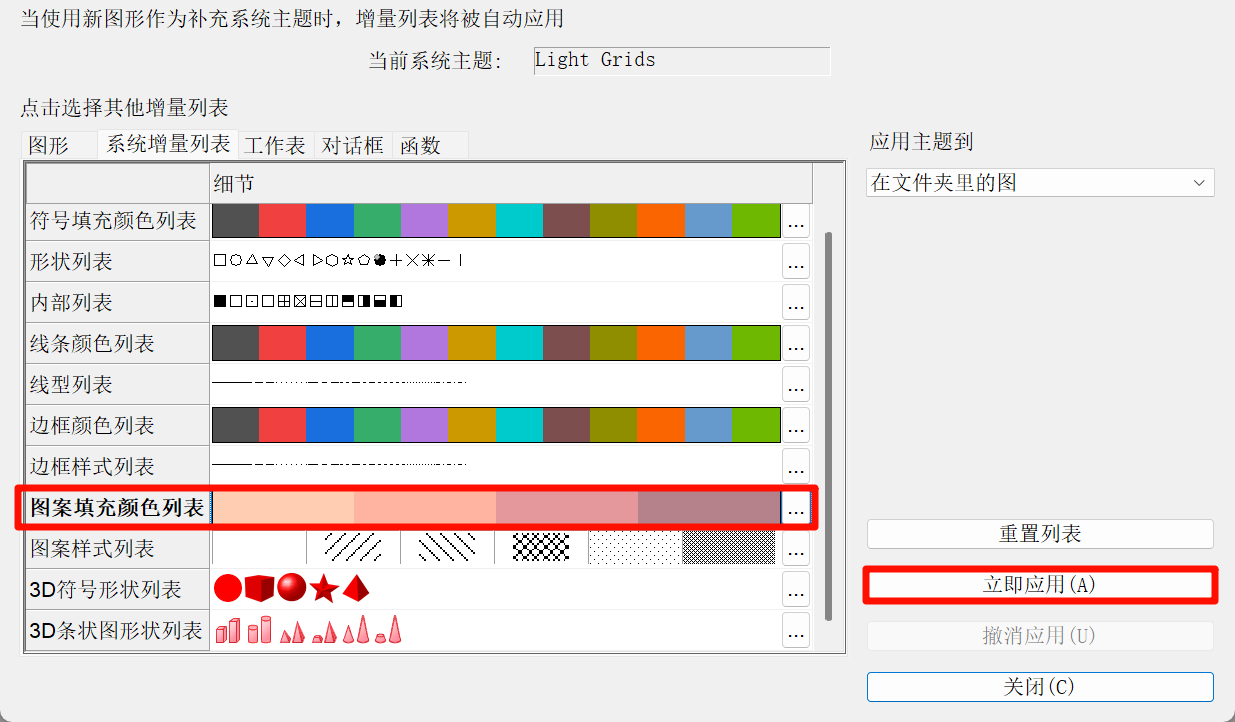
- Click Pattern Fill Color List to change the default color scheme for patterns.
You can choose the desired scheme by clicking Details > Palette > More, or click the nearby
···for additional settings.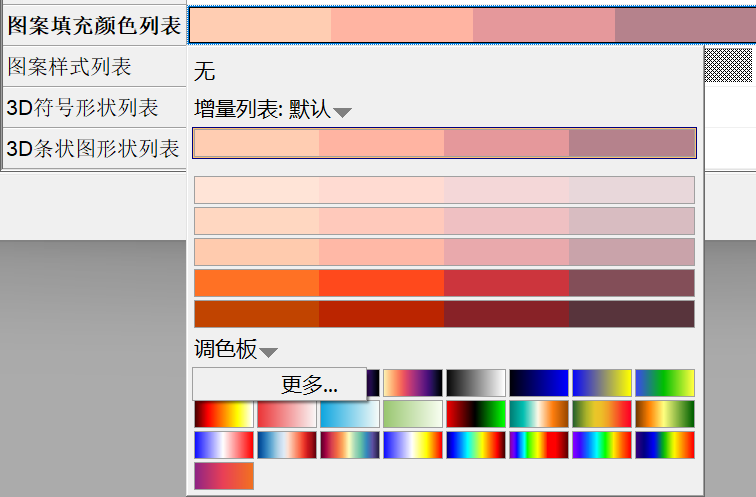
Color File Locations#
Click
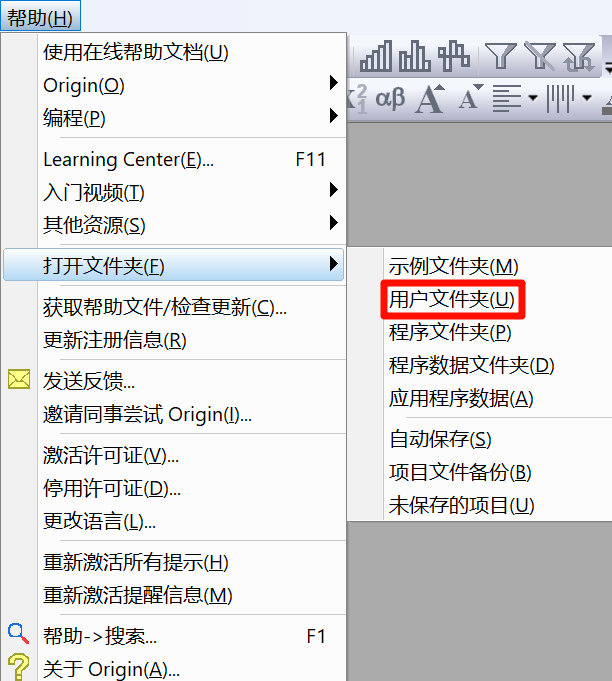
Help>Open Folder(H)>User Files Folder(U).In the opened folder:
\Themes\Graphstores user-added color-list scheme files;\Palettesstores user-added palette scheme files.
If you want to share your own color schemes, you can directly send the files in these two folders to others.
If these two folders do not exist, first create a new color scheme and the system will automatically generate the corresponding folders.